

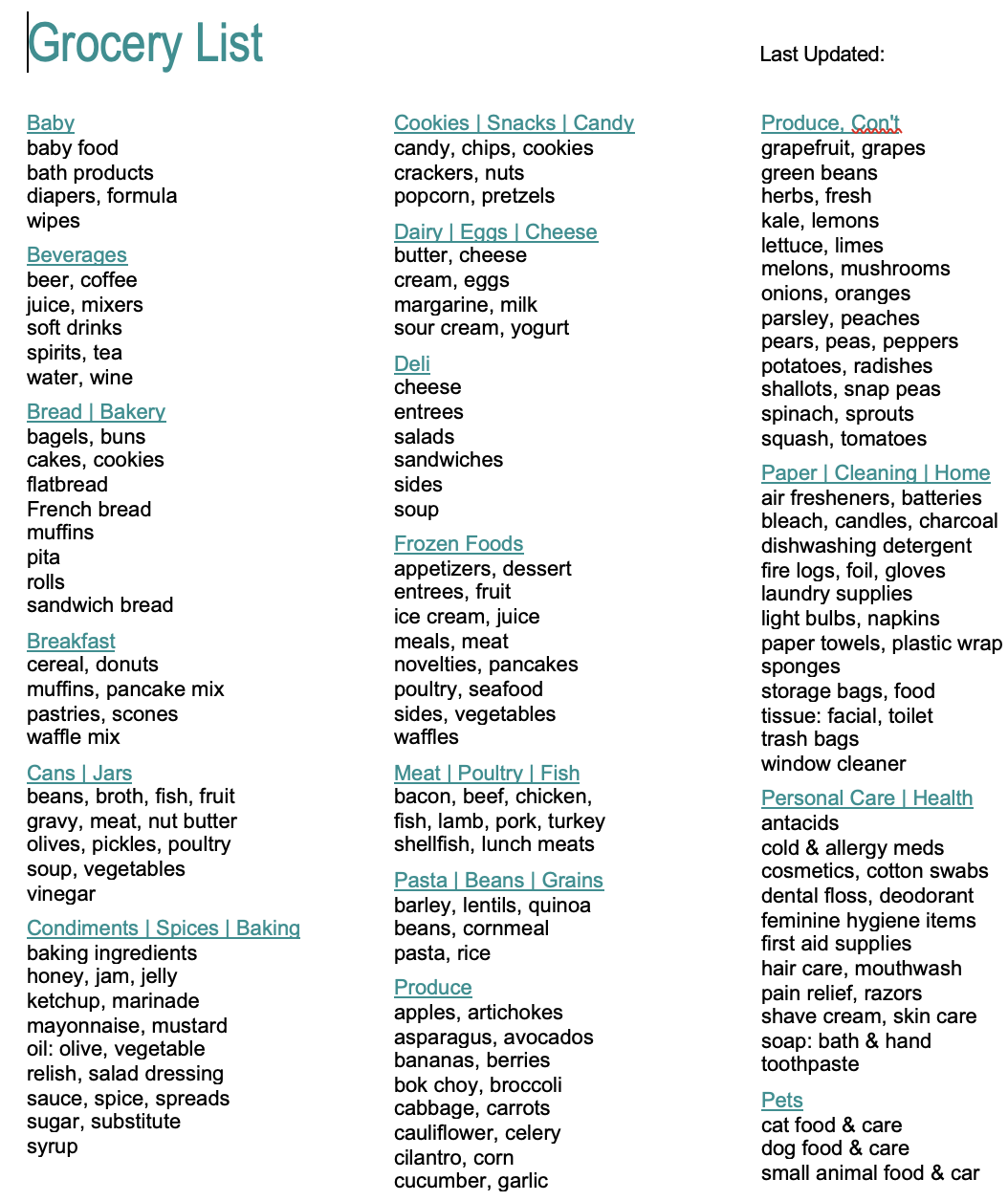
This is a test of a new Icegram post notification campaign settings.
The original Post Notification template got messed up while I was trying to reduce the size of the image, which the Notification shows full size instead of scaled down, like the actual blog post.
I can’t test the post notification again using the Grocery List blog post because after the first test the post shows as “Published,” even though it was just a test, and the blog post “Publish” button is deactivated.
I will try to figure out how to actually publish it to the Public List if this test is successful.
Here’s how I set up the new Post notification:
> Create Campaign > Post Notification > Suggested templates: Chose the 1st template, which showed correctly > Save & Exit > it creates a draft on Campaigns page > … Edit > the template format is correct > Test Email (button, top right) was sent. It was correct > Next > Activate: “Success”
Settings on the Edit Campaign Page
Subject: Post Title – OK
Design: OK
Recipients: Test (3) > Saved
Post Settings: Select Categories: All; Select Post Type: Page or Habilink (left blank don’t know what these are)
Additional settings: > edit > open tracking (must reset every time) > Saved
Image: Comes from blog post. The template for the blog post itself scales the Grocery List screen shot to a preset size, but when the icegram blog post notification incorporates the .png image it seems to be full size. No way to fix.